
Nothing spoils a planned evening of live sports or prime-time television faster than opening your streaming app only to find an empty program guide filled with grey blocks and the dreaded label: “No Information Available.” Unlike traditional cable or satellite set-top boxes—which receive proprietary, pre-packaged broadcast schedules embedded directly into dedicated radio-frequency signals—an iptv schedule relies on separate data feeds fetched over the internet. When that data pipeline is configured correctly, you get a responsive, full-color Electronic Program Guide (EPG) complete with episode synopses, season numbers, match fixtures, and catch-up indicators. When misconfigured, you are left navigating blind through thousands of unlabeled channels. In this comprehensive technical guide, we break down how IPTV schedules function behind the scenes, how to integrate and sync reliable XMLTV feeds into leading streaming players, how to eliminate timezone mismatches, and how to resolve missing sports listings once and for all.
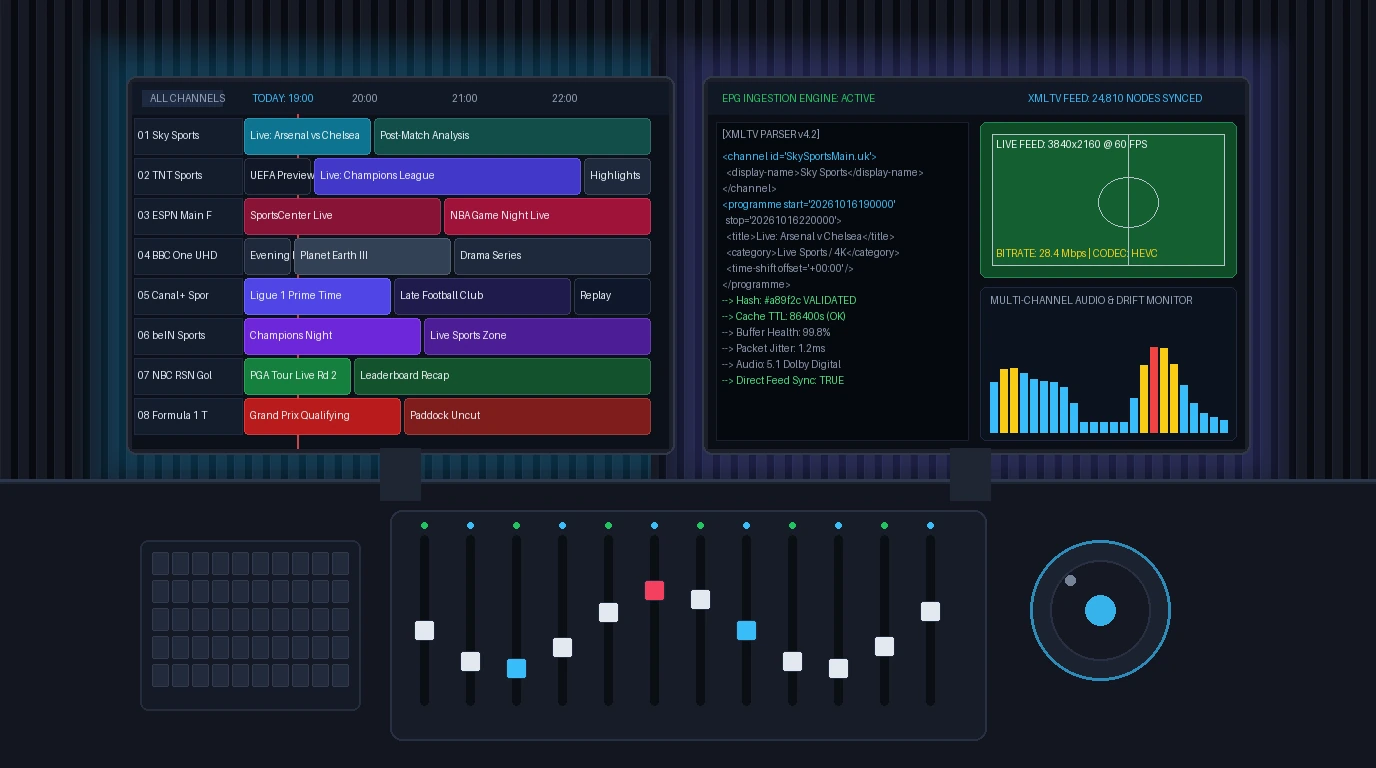
⚡ Core Architecture: Video Streams and Guide Data Are Separate
Your video stream and your TV guide arrive from different sources. When you load an M3U playlist, the video stream comes from media servers via HLS or MPEG-TS. The schedule data, by contrast, is fetched separately from an XMLTV URL or an Xtream Codes EPG endpoint. If your guide says “No Information,” your stream is not broken—only the metadata link has failed.
What Is an IPTV Schedule and How Does an EPG Work?
At its simplest, an IPTV schedule is the digital roadmap that tells your media player what is currently broadcasting, what aired earlier (for catch-up DVR functionality), and what will air over the next 24 hours to 7 days. In modern streaming architecture, your player application pulls down structured metadata, parses it, and maps it against your channel list.
XMLTV Feed Structure (.xml / .xml.gz)
An open XML-based standard. The file lists channel blocks identified by a unique ID, followed by thousands of program tags defining start times, end times, titles, categories, and episode descriptions in UTC format. Compressed Gzip archives (.xml.gz) reduce bandwidth usage by up to 90%.
Xtream Codes API Ingestion
Instead of downloading an entire 150 MB XML database, Xtream Codes architecture uses lightweight JSON API endpoints (such as action=get_short_epg). Your streaming app fetches schedule data on-demand only for the specific channels visible on your screen, drastically reducing RAM load on streaming sticks.
How Your IPTV Player Matches Streams with Guide Listings
To link a live video stream with its corresponding timetable, your player inspects the tvg-id tag inside your M3U playlist:
#EXTINF:-1 tvg-id="SkySportsMainEvent.uk" tvg-name="UK: Sky Sports Main Event" tvg-logo="https://assets.tvonline.best/logos/skymain.png" group-title="UK Sports",Sky Sports Main Event FHD
http://line.tvonline.best:80/live/user/pass/10492.ts
The player then cross-references this with the XMLTV database:
<channel id="SkySportsMainEvent.uk">
  <display-name>Sky Sports Main Event</display-name>
</channel>
<programme start="20261016190000 +0000" stop="20261016220000 +0000" channel="SkySportsMainEvent.uk">
  <title lang="en">Premier League Live: Arsenal vs Chelsea</title>
  <desc lang="en">Live coverage from the Emirates Stadium in 4K UHD.</desc>
  <category lang="en">Sports</category>
</programme>
If the tvg-id in your playlist perfectly matches the channel id in the XMLTV file, the player displays program titles, posters, and time blocks effortlessly. If the IDs differ by even one character, the channel row remains completely blank.
Why IPTV Schedules Break (And How to Identify the Root Cause)
When your electronic program schedule malfunctions, the problem virtually always originates from one of three distinct technical bottlenecks:
- 1. The "No Information Available" Syndrome: Occurs when your provider updates channel stream names without updating the matching
tvg-idattributes, or when your player fails to fetch an updated XMLTV file due to a server connection timeout. - 2. Timezone Desynchronization (Time Shift Errors): Standard XMLTV feeds store broadcast timestamps in Coordinated Universal Time (UTC,
+0000). If your IPTV player or streaming device does not apply the proper geographic offset (such as UTC-5 for Eastern Time or UTC+1 for Central European Time), every show will appear hours early or late on your grid. - 3. Low-RAM Device Crashes (File Bloat): Uncompressed XMLTV files containing 20,000+ channels can exceed 150 MB. When low-memory streaming devices (like an 8 GB Firestick or generic Android TV box) attempt to parse this massive XML tree in RAM, the app either freezes, drops frames, or crashes back to the home screen.
How to Configure and Sync an IPTV Schedule in Popular Players
Modern players allow you to fine-tune update intervals, add multiple EPG sources, and correct time offsets manually. If you are comparing player interfaces, check our comprehensive roundup of the best IPTV player options for television and mobile.
1. Configuring EPG in TiviMate (Android TV / Fire OS)
- Navigate to Settings > EPG > EPG Sources > Add Source.
- Enter your provider's XMLTV link (always prefer a
.xml.gzcompressed address). - Under Playlists, select your active playlist, scroll to EPG, and assign your new guide as the default source.
- Toggle Update on app start to ON and set the Update interval to 24 hours.
- If program start times are misaligned, open EPG Sources > [Your Source] > Time offset and adjust the slider by +/- hours to match your local clock.
2. Setting Up Schedules in IPTV Smarters Pro
- From the main dashboard, select Install EPG (or go to Settings > EPG Time Shift).
- If using an M3U playlist URL, tap Add EPG and paste your direct XMLTV URL.
- Click Refresh EPG to initiate the download.
- To correct time offsets, open Settings > Time Shift and select your regional UTC offset.
3. Managing Guide Data on Apple TV (IPTVX & Flix IPTV)
In IPTVX on Apple TV 4K, open Settings > EPG Settings to paste external XMLTV links and enable background synchronization. For Flix IPTV, EPG URLs can be submitted alongside your M3U playlist directly through the web portal using your TV's MAC address.
Syncing Live Sports Schedules: Escaping the “Live Event” Trap
Sports fans often find their IPTV schedule frustratingly uninformative. Tuning into dedicated sports feeds often displays generic placeholders like:
15:00 - 17:00: Live Football Match19:00 - 22:00: Live Sports EventGame Day Feed 04: Programming Starts Soon
This happens because regional sports spillover channels and pop-up PPV feeds do not have fixed 24/7 broadcast licenses. Automated XML scrapers cannot predict which match will be routed to which overflow feed until hours before kickoff.
Pro Tip for Sports Fans: Advanced IPTV players (like TiviMate and iMPlayer) allow you to assign multiple EPG sources. You can keep your provider's general XMLTV feed for news and entertainment, while mapping your sports categories to dedicated community sports XMLTV grabbers that track live fixtures. For optimal game day stability, check out our guide on IPTV for sports streaming.
IPTV Schedule Troubleshooting Matrix
Use this quick-reference troubleshooting matrix to identify and fix common electronic program guide errors:
| Issue / Symptom | Probable Cause | Exact Resolution |
|---|---|---|
| Entire guide says “No Information” | Expired EPG cache, broken XMLTV URL, or host server downtime. | Clear player EPG cache, confirm the XML link opens in a web browser, and force a manual refresh. |
| Programs are off by 1 to 5 hours | UTC timezone mismatch between XMLTV timestamps and player clock. | Adjust the EPG Time Shift or Time Offset setting by +/- hours until current shows match your clock. |
| App crashes when updating guide | Streaming stick running out of RAM trying to parse an oversized XML file. | Switch to a .xml.gz compressed URL, set past days history to 0 or 1, and prune unwanted foreign channel groups. |
| Only sports channels are missing data | Mismatched tvg-id or generic placeholder overflow feed. |
Use your player’s Assign EPG feature to manually map the channel to a verified sports XML guide. |
| Guide updates stall at 0% | ISP DNS filtering, rate limiting, or connection timeout. | Switch DNS to Cloudflare (1.1.1.1) or Google (8.8.8.8). If video also stutters, see how to fix IPTV buffering and freezing. |
How to Manually Map Missing Channels to Guide Data
When an individual channel has no schedule information but other channels display properly, you do not need to wait for your provider. Most premium players let you assign EPG listings manually:
- In your channel guide or full-screen TV grid, highlight the unmapped channel.
- Long-press the Select / OK button on your remote control to open the channel options sidebar.
- Select Assign EPG.
- Type the official network name into the search box (e.g., search
TNT Sports 1orNBC Sports). - Select the matching XMLTV channel node from your active sources. The player will instantly map the program schedule, episode descriptions, and current progress bar to that channel.
Best Practices for Maintaining a Fast, Accurate IPTV Schedule
- Always Use Compressed .xml.gz Links: Gzip compression shrinks XMLTV payloads from 150 MB down to 15 MB, drastically reducing download time and avoiding memory overflow errors on Amazon Fire TV sticks.
- Prune Inactive Channel Bouquets: If your subscription offers 25,000 channels across 50 languages but you only watch 2,000 channels, use an M3U editor to hide unused groups. Your EPG will sync in 10 seconds instead of two minutes.
- Schedule Automated Off-Peak Updates: Set your player to refresh guide data automatically at 4:00 AM so updates do not compete with 4K streaming bandwidth during evening prime time.
- Limit Historical Cache to 1 Day: Storing 7 days of past guide history eats up valuable internal storage on 8 GB streaming dongles without providing extra utility unless you actively use catch-up replay.
Frequently Asked Questions About IPTV Schedules
What is the difference between an IPTV schedule and an EPG?
There is no functional difference. “IPTV schedule” is the consumer-facing term for live TV listings, while “EPG” (Electronic Program Guide) refers to the technical software framework and XMLTV metadata protocols that power the visual schedule grid.
Why does my IPTV schedule display “No Information” on every channel?
This typically points to an expired local cache, an outdated XMLTV URL, or a server-side timeout. Go to your player’s EPG settings, choose “Clear EPG Data,” and trigger a fresh manual update. If it fails, check whether your provider has updated their EPG server address.
How do I fix wrong start times for live sports and shows?
Adjust the EPG Time Shift in your player settings. Because XMLTV feeds use UTC time, you must apply an offset (e.g., -5 hours for US Eastern, +1 hour for Central European Time) until the highlighted program aligns with your local clock.
Can I add a third-party XMLTV schedule if my provider’s guide is missing?
Yes. Advanced IPTV players like TiviMate, iMPlayer, and IPTVX support multiple simultaneous EPG sources. You can add external, community-maintained XMLTV links and manually assign missing channels without modifying your video streams.
How often should I update my IPTV schedule?
Once every 24 hours is optimal. Updating more frequently can cause unnecessary server requests and playback stutter, while updating weekly leaves you with outdated schedules for sports fixtures and special broadcasts.
Final Verdict: Reliable Guide Data Makes Cord-Cutting Seamless
An IPTV setup is only as enjoyable as its navigation. A high-bitrate 4K stream provides little value if you are forced to hunt through hundreds of unlabeled channels to find out what is playing. By using compressed .xml.gz guide feeds, verifying tvg-id alignment, and calibrating your local time offset, you can ensure your iptv schedule stays consistently populated and responsive across every screen in your home.
Looking for a Stable, Pre-Synchronized IPTV Lineup?
See TV Online plans with 25,000+ live channels, 60,000+ VOD titles, and support on WhatsApp.