
The Neutro IPTV Player has grown in visibility as cord-cutters look for flexible media players that operate seamlessly across desktop operating systems and streaming sticks. Unlike proprietary player applications restricted to a single ecosystem, Neutro provides official releases on Windows and macOS while supporting Android TV and Fire TV via sideloading. However, many new users find themselves confused about what the software actually delivers. This guide explains how Neutro works, its dual playback architecture, how to configure your credentials, and how it compares to established alternatives.
Short answer: what is Neutro IPTV Player?
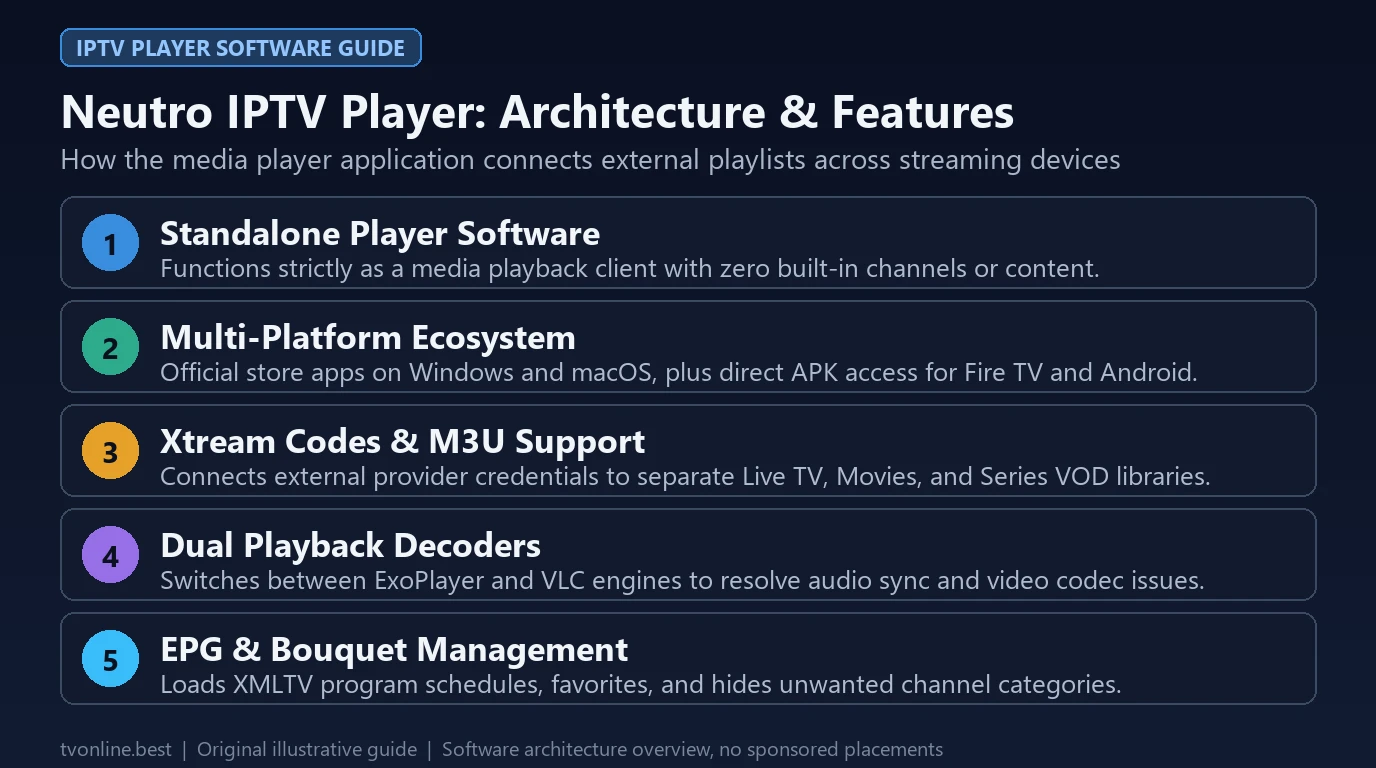
Neutro IPTV Player is strictly a third-party media player client; it contains zero built-in channels, movies, or video feeds. It allows viewers to input their own M3U playlist URL or Xtream Codes API login credentials from an independent IPTV subscription. Its primary advantages are multi-platform availability (including native Microsoft Store and Mac App Store versions) and a dual-engine player that lets you toggle between ExoPlayer and VLC decoders.
How this guide was evaluated
TV Online does not publish sponsored reviews or manufacturer claims. This overview examines publicly documented software specifications, app store listings, codec support parameters, and standard streaming configurations to help you decide whether Neutro matches your streaming setup.
Player Software vs. Content Provider: The Essential Distinction
A common misconception among newcomers is expecting Neutro IPTV Player to function as a plug-and-play streaming subscription like Hulu or Netflix. In the streaming industry, media tools and content streams are entirely separate entities:
- The Player (Neutro): The software application responsible for rendering the graphical user interface, organizing categories, decoding video and audio codecs, and displaying the electronic program schedule. Neutro provides no media files, streams, or broadcast rights.
- The Service Provider: The subscription service that hosts and delivers the live broadcast feeds and video-on-demand content. You must obtain login details or playlist links from an independent provider.
Understanding this division is essential before you purchase hardware or subscriptions. For a detailed breakdown of how to evaluate streaming services independently, see our pre-purchase checklist for IPTV subscriptions and our analysis of IPTV legality and consumer safety.
Platform Availability: Where Can You Run Neutro?
One of Neutro’s distinct attributes in the streaming player landscape is its cross-platform footprint. While many leading Android players ignore desktop operating systems, Neutro maintains native presence across multiple environments:
- Windows PCs: Distributed directly through the Microsoft Store. This eliminates the need to run heavy Android emulators (like BlueStacks) just to watch your playlist on a desktop monitor or laptop.
- macOS (Apple Silicon & Intel): Available as a native desktop client through the Apple Mac App Store, offering Mac users a dedicated IPTV interface.
- Android TV & Streaming Boxes: Compatible with Android TV boxes and Google TV devices via standalone APK distribution.
- Amazon Fire TV Stick: Can be installed on Fire OS devices using the Downloader app by fetching the direct package from the developer’s official portal.
If your primary viewing setup is centered around Amazon hardware, you can review our companion guide to the best IPTV configuration for Firestick and our walkthrough on how to install streaming apps on Fire TV.
Dual Playback Decoders: ExoPlayer vs. VLC
Streaming live television feeds over IP networks involves diverse video compression formats (including H.264, HEVC/H.265, and MPEG-2) and varied audio streams (AAC, AC3, and Dolby Digital). When a player uses an inflexible decoding engine, certain streams fail to load or produce audio out-of-sync errors.
Neutro addresses this by embedding two distinct internal rendering engines, allowing users to toggle between them within playback settings:
| Engine | Strengths | Potential Limitations | When to Choose |
|---|---|---|---|
| ExoPlayer (Default) | Fast channel zapping, smooth hardware acceleration, low memory footprint | May struggle with older interlaced broadcast formats or legacy audio codecs | Standard 1080p and 60 FPS live sports streams on modern hardware |
| VLC Engine | Exceptional codec compatibility, robust handling of complex audio containers | Slightly higher CPU utilization during channel changes | Streams with missing audio, out-of-sync dialogue, or unusual container formats |
| External Player | Delegates playback to standalone apps installed on your device (e.g., MX Player) | Exits the unified Neutro interface, disabling in-app EPG overlay | Specialized decoding needs or legacy low-power hardware |
If you experience stuttering or freezing regardless of the decoder engine, consult our guide on troubleshooting IPTV buffering and check recommended internet speeds for live streaming.
Step-by-Step Setup: Xtream Codes API vs. M3U Playlist
When launching Neutro for the first time, you will be prompted to add your playlist source. The application supports two standard connection protocols:
Option 1: Xtream Codes API (Recommended)
Connecting via Xtream Codes API is the preferred method for the majority of users because it automatically organizes content into structured Live TV, Movies, and Series categories while mapping EPG data seamlessly.
- Open Neutro IPTV Player and select Add User / XC Portal.
- Enter a descriptive Profile Name (such as “Home Streaming”).
- Input the Server URL / Portal DNS provided by your IPTV service provider.
- Enter your assigned Username and Password.
- Click Login / Connect to download your account bouquets and channel schedules.
Option 2: M3U Playlist URL
If your provider only supplies an M3U8 web address or a local playlist file, choose the M3U option. Paste the full URL into the address field. Note that raw M3U files can be several megabytes in size; loading tens of thousands of unsorted streams can cause initial loading delays. For technical details on playlist structures, see our guide to M3U playlists and EPG integration.
EPG Synchronization and Category Management
A common problem with comprehensive IPTV subscriptions is sheer volume. When an account contains 20,000+ channels spanning dozens of countries, navigation without organization becomes tedious.
Neutro incorporates several management tools to keep your interface clean:
- Bouquet Hiding: Navigate to the category management menu to deselect entire international bundles or languages you do not watch. Hiding unwanted categories significantly speeds up app launch times and reduces memory overhead.
- Channel Favoriting: Press and hold the selection button on your remote over any channel to add it to a dedicated Favorites list for instant access.
- XMLTV EPG Offsets: If program titles do not align with current broadcasts due to time zone differences, you can adjust the EPG time offset (e.g., +1 or -5 hours) in settings. For more on bouquet optimization, read our guide to IPTV channel lineups and bouquets.
The Rebranding Phenomenon: Why Other Apps Look Like Neutro
While researching Neutro, you may notice other streaming applications that share an identical interface, menu structure, and color scheme under entirely different brand names. This occurs because the developer behind Neutro also sells white-label app customization services.
IPTV subscription storefronts frequently purchase custom-branded versions of the player pre-configured with their own server portals and logos. While convenient, using an independent, unbranded version of a player gives you the freedom to switch providers without losing your software setup. Our guide to inspecting an IPTV shop discusses how white-label branding operates across the industry.
How Neutro Compares to Leading IPTV Players
To determine whether Neutro fits your workflow, compare its core attributes against two industry standards:
| Feature / Criterion | Neutro IPTV Player | TiviMate IPTV Player | IPTV Smarters Pro |
|---|---|---|---|
| Primary Platform Focus | Cross-platform (Windows, Mac, Android) | Android TV / Fire OS living room TV guide | Cross-platform (iOS, Android, Web, Smart TV) |
| EPG Grid Interface | Categorized vertical list with program details | Full horizontal cable-style EPG timeline grid | Category tiles with horizontal schedule preview |
| Desktop Availability | Native Microsoft Store & Mac App Store | Requires Android emulator on PC/Mac | Third-party desktop builds available |
| Decoder Flexibility | Integrated ExoPlayer and VLC engines | Custom internal ExoPlayer with tunnel playback | Internal player with external player handoff |
| Multi-Screen Layout | Supported | Advanced multi-view (up to 9 screens) | Supported (up to 4 screens) |
| Best Use Case | Viewers streaming on PCs, Macs, and Firesticks | Living room Android TV / Fire TV enthusiasts | Casual users wanting a simple tile-based app |
For a broader examination of player software across all devices, explore our top IPTV player comparison guide.
Troubleshooting Common Neutro Playback Issues
If you encounter technical issues while streaming in Neutro, use these targeted diagnostic steps:
- Stream Buffers or Loops: Switch the active player engine in settings from ExoPlayer to VLC, or increase the stream buffer cache from 1 second to 3–5 seconds.
- EPG Shows “No Information”: Verify that your provider includes an XMLTV URL in your Xtream profile, and trigger a manual EPG refresh from the settings menu.
- Audio Plays Without Video: This typically indicates a hardware decoding mismatch with HEVC or interlaced feeds. Switch to the VLC engine to engage software decoding.
- Login Fails on XC Portal: Double-check the Server URL for trailing slashes, ensure your username and password are typed with exact casing, and verify your account status with your provider.
Where TV Online Fits
Regardless of whether you choose Neutro, TiviMate, or another streaming client, your playback stability ultimately depends on the quality of your underlying connection. You can examine TV Online’s multi-screen options and plan details in the pricing section, explore device compatibility in the supported devices guide, and review our infrastructure in the features overview. Always test streaming software on your own network before committing to an extended setup.
Frequently Asked Questions About Neutro IPTV Player
Does Neutro IPTV Player come with live channels or movies?
No. Neutro IPTV Player is strictly a media playback tool. It contains no pre-installed channels, content libraries, or subscriptions. Users must provide their own M3U playlist URL or Xtream Codes API credentials from an independent IPTV service.
Is Neutro IPTV Player available on the Amazon Appstore?
Neutro is generally not listed on the official Amazon Appstore for Fire TV devices. Firestick users typically install it by downloading the APK file directly through the Downloader application.
Can I use Neutro IPTV Player on a Windows PC or Mac without an emulator?
Yes. One of Neutro’s primary advantages is that it offers native applications available directly through the Microsoft Store on Windows and the Apple Mac App Store on macOS, eliminating the need for Android emulators like BlueStacks.
What is the difference between ExoPlayer and VLC in Neutro?
ExoPlayer is an Android-native video player engine that provides fast hardware acceleration and quick channel changes. VLC is a broader decoder engine capable of handling unusual audio formats, subtitles, and interlaced streams that may cause playback issues in ExoPlayer.
Is Neutro IPTV Player legal to download and use?
Yes. Media player applications like Neutro are legal software tools designed to play user-provided video streams. The legality of your streaming activity depends entirely on the sources and copyright permissions of the playlists you connect to the player.
How do I hide adult or unwanted channel categories in Neutro?
Open the category management or bouquet settings within Neutro. You can toggle visibility for specific bouquets or apply a parental PIN lock to prevent unwanted categories from appearing in your main channel list.