
Installing an IPTV service directly onto a Smart TV has historically forced viewers to navigate clunky interfaces, crash-prone playlist loaders, and outdated software. Apps like the original Smart IPTV (SIPTV) set the baseline years ago, but modern cord-cutters streaming 4K 60 FPS live sports demand faster channel zapping, native EPG parsing, and reliable video rendering. Enter set iptv: one of the most widely adopted and polished direct-to-TV media player solutions for Samsung Tizen, LG webOS, and Android-powered displays. However, new users frequently encounter stumbling blocks: opening the downloaded app presents a bare screen displaying a MAC address, zero pre-loaded channels, and a prompt directing them to an external web portal. In this definitive guide, we clarify what Set IPTV actually is, how its one-time lifetime activation pricing works, step-by-step setup instructions across major TV brands, playlist configuration, troubleshooting techniques, and how it stacks up against competing players.
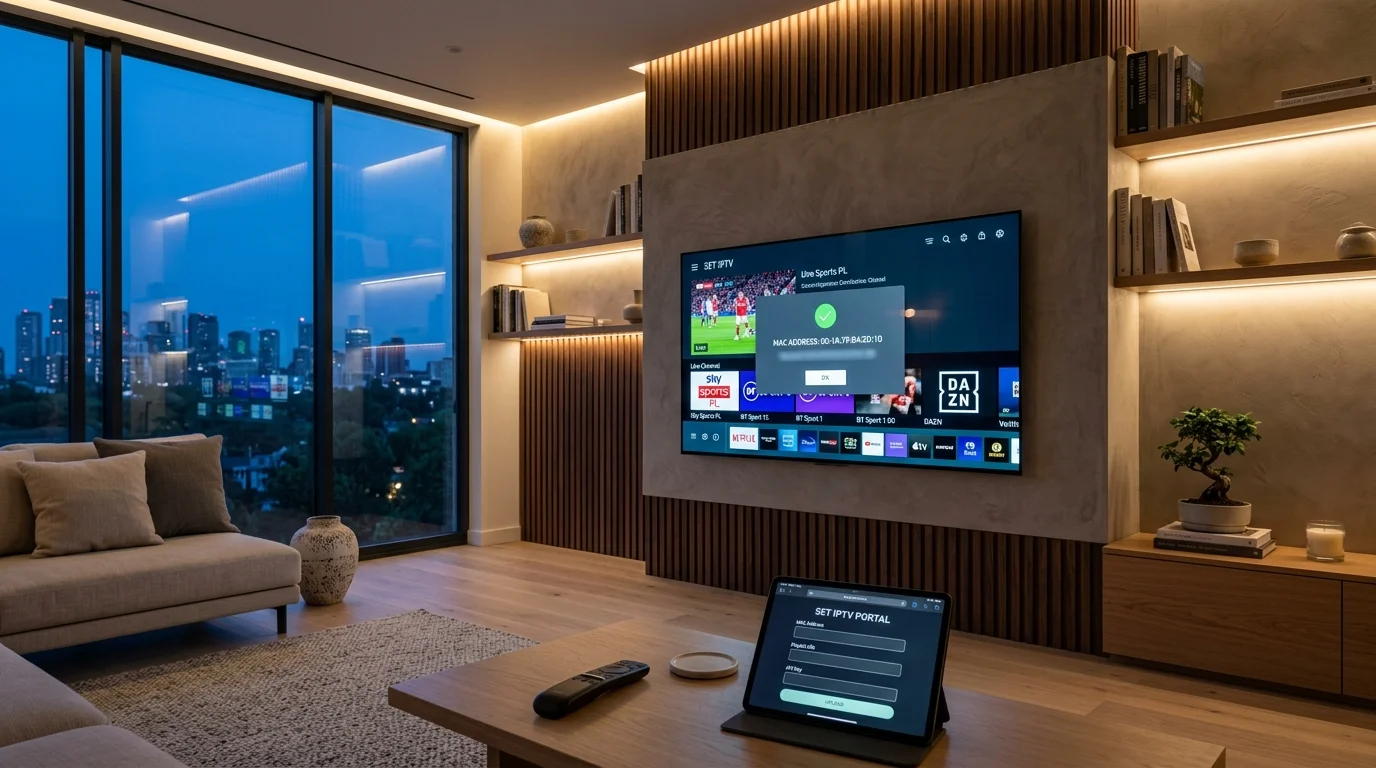
⚡ Critical Fact: Set IPTV Is a Player, Not a Content Provider
Set IPTV contains zero built-in channels or movies. Paying the developer's activation fee unlocks the media player engine only. To watch live television, premium sports, and on-demand video, you must supply your own M3U playlist URL or Xtream Codes API link from an independent, high-performance streaming subscription.
What Is Set IPTV? (And What It Is Not)
Before configuring settings or purchasing licenses, understanding the software architecture of Set IPTV saves hours of misdirected troubleshooting. Set IPTV functions strictly as a client media player application. It acts as the graphical interface and video decoding engine that lives on your Smart TV or streaming stick.
What Set IPTV Delivers
- • Fast hardware-accelerated video playback engine.
- • Intuitive Smart TV interface built for standard remote controls.
- • XMLTV Electronic Program Guide (EPG) parser with time offset controls.
- • Dual-input support for M3U Plus URLs and Xtream Codes API.
- • Native audio stream and multilingual subtitle switcher.
What Set IPTV Does NOT Provide
- • No pre-installed TV channels, sports feeds, or PPV events.
- • No video-on-demand (VOD) movie or television libraries.
- • No streaming servers, proxy tunnels, or hosting infrastructure.
- • No customer support for buffering caused by external providers.
Supported Operating Systems and Native TV Platforms
Set IPTV was specifically engineered to bypass the need for external streaming boxes like the Apple TV or Nvidia Shield, offering native builds for:
- Samsung Smart TVs: Compatible with Samsung Tizen OS (models produced from 2016 through 2026).
- LG Smart TVs: Available directly on LG webOS (webOS 3.0 through current webOS 24+ versions).
- Amazon Fire TV: Sideloadable on Firestick 4K Max, Fire TV Cube, and smart Fire TV editions.
- Android TV & Google TV: Sony Bravia, Philips, TCL, Chromecast with Google TV, and dedicated Android set-top boxes.
Set IPTV Pricing & License Activation Explained
Unlike standard streaming apps that charge recurring monthly fees, Set IPTV operates on a one-off licensing model.
The 7-Day Free Trial Window
When you install Set IPTV for the first time on any supported screen, the app generates a unique virtual identifier and grants an unrestricted 7-day free trial. During these seven days, all player features—including full EPG synchronization, subtitle decoding, and multi-playlist management—are completely functional. You do not need to enter payment card details to initiate this trial period.
Lifetime License Cost and MAC Address Binding
Once the 7-day trial elapses, the application locks with an on-screen prompt reading "Device Not Activated". To continue using the software:
- Activation Fee: Approximately €15.39 (a one-time payment; no recurring monthly or annual costs).
- Payment Portal: Activation is completed exclusively through the official developer portal (
setsysteme.comorsetiptv.com). - Hardware Binding: The license is bound permanently to your TV's MAC Address.
⚠️ Important License Note
Because Set IPTV licenses are tied to hardware identifiers, if you replace your television or purchase a new streaming device, the license cannot typically be transferred to the new MAC address without purchasing a fresh activation.
Step-by-Step Installation: How to Install Set IPTV on Any Device
The installation pathway depends on your display operating system. Follow the targeted instructions below for your hardware.
Installing Set IPTV on Samsung Smart TV (Tizen OS)
- Power on your Samsung Smart TV and press the Home button on your OneRemote.
- Navigate left to open the Apps store.
- Select the Search icon in the upper-right corner.
- Type
SET IPTVinto the search bar. - Select the application from the search results and click Install.
- Once downloaded, choose Add to Home for instant access from your main app carousel.
- Launch the app. Note down the MAC Address displayed on the initialization screen.
Installing Set IPTV on LG Smart TV (webOS)
- Turn on your LG TV and press the Home button to bring up the webOS menu bar.
- Click on the LG Content Store (or Apps on newer webOS releases).
- Click the Search icon at the top of the interface.
- Input
Set IPTVand run the query. - Click Install. webOS will automatically verify compatibility and finish the setup.
- Open the app and record the TV MAC string (formatted as
xx:xx:xx:xx:xx:xx).
Sideloading Set IPTV on Amazon Firestick & Fire TV
Because Set IPTV is primarily tailored for Smart TV stores, running it on an Amazon Fire TV device requires sideloading via the Downloader app:
- From the Fire TV Home Screen, go to Find > Search and install the free Downloader app.
- Go to Firestick Settings > My Fire TV > Developer Options.
- Enable Install Unknown Apps for Downloader.
- Launch Downloader and enter the direct official APK download link:
https://setsysteme.com/set.apk. - Click Go, allow the APK package to download, and select Install.
- Open Set IPTV and document your MAC address.
┌────────────────────────────────────────────────────────────────────────┐
│                   SET IPTV PORTAL SYNCHRONIZATION FLOW                 │
├────────────────────────────────────────────────────────────────────────┤
│ 1. Open Web Browser ──► Visit setsysteme.com/set.app                   │
│ 2. Enter MAC Address (e.g. 00:1a:79:xx:xx:xx)                          │
│ 3. Choose Input:                                                       │
│    ├─► Method A: Paste M3U Plus URL & EPG XMLTV Link                   │
│    └─► Method B: Enter Xtream Codes (Server URL + User + Pass)         │
│ 4. Complete Captcha & Click "Send"                                     │
│ 5. Restart Set IPTV on Television ──► Channels & EPG Loaded!           │
└────────────────────────────────────────────────────────────────────────┘
How to Configure and Upload Playlists to Set IPTV
Set IPTV eliminates typing cumbersome 80-character streaming links using a slow TV remote control. Instead, playlist management takes place through a web browser on your computer, tablet, or smartphone.
Method 1: Uploading via M3U Plus URL (Recommended)
- Open your web browser on a phone or laptop and visit the official Set IPTV upload portal: https://setsysteme.com/set.app.
- In the MAC field, type your TV's exact MAC address without spaces.
- Locate the Link M3U input box.
- Copy the complete M3U Plus URL sent to you by your IPTV provider and paste it into the field.
- Check the reCAPTCHA box ("I'm not a robot").
- Click the Send button. A green confirmation banner will appear reading "Saved successfully".
- Return to your TV, press the designated reload button on your remote (or restart the app) to trigger a reload. Your channel lists and categories will populate instantly.
Method 2: Connecting via Xtream Codes API
If your streaming provider issued Xtream Codes credentials rather than a raw M3U link:
- Navigate to the upload portal (
setsysteme.com/set.app). - Input your MAC Address.
- Select the Xtream Codes input section.
- Fill in the three designated fields: Server URL, Username, and Password.
- Click Submit / Send and restart the TV app.
For advanced EPG formatting and timetable syncing, refer to our comprehensive IPTV schedule and EPG integration guide.
Key Features and Interface Optimization
To achieve fluid, stutter-free playback on Smart TVs—which often possess modest internal processing units—adjust the following settings within the app:
Hardware Decoding vs. Software Decoding
By default, Set IPTV balances stream rendering automatically. If you experience micro-stuttering or black screens during high-bitrate live broadcasts, navigate to Settings > Playback and toggle the video decoder to Hardware Acceleration (HW). Hardware decoding delegates video decompression directly to the television's dedicated graphics processing chip, drastically reducing CPU load and preventing frame drops during 4K 60 FPS sports broadcasts.
Audio Track and Subtitle Selection
International broadcasts and movie streams frequently carry multiple audio streams (such as English 5.1 surround, Spanish commentary, or ambient stadium sound). While a channel is playing in full screen, press the OK button on your remote, select the Audio icon, and toggle your preferred language codec. You can also toggle closed captions through the Subtitle menu.
How to Fix Common Set IPTV Errors and Buffering
Smart TV operating systems manage background cache aggressively. If your stream drops or fails to connect, follow these verified fixes:
| Error / Symptom | Probable Cause | Proven Resolution |
|---|---|---|
| "Device Not Activated" | 7-day trial expired or payment tied to wrong MAC | Verify TV MAC on screen and complete one-time activation at setsysteme.com. |
| "Check Playlist URL" | Typo in M3U address, server offline, or ISP block | Test link in browser, verify account credentials, or change TV DNS to 1.1.1.1. |
| Audio / Video Desync | Software decoder latency or mismatched audio codec | Enable Hardware (HW) decoding in Playback Settings. |
| Frequent Buffering on 4K | ISP bandwidth throttling or congested reseller line | Switch stream format to HLS (.m3u8), increase buffer size, or setup router-level VPN. |
| App Freezes on Splash Screen | Overloaded playlist file (exceeding 50MB) or full TV cache | Clear TV app cache in system settings and request a filtered playlist from provider. |
For deeper network troubleshooting and bandwidth optimization, read our full guides on how to fix IPTV buffering and freezing and the required internet speed needed for 4K streaming.
Set IPTV vs. Smart IPTV vs. Flix IPTV vs. TiviMate
Here is how Set IPTV compares to other mainstream streaming media players in 2026:
| Feature | Set IPTV | Smart IPTV (SIPTV) | Flix IPTV | TiviMate |
|---|---|---|---|---|
| Supported OS | Samsung, LG, Firestick, Android | Samsung, LG, Android | Samsung, LG, Firestick, Android | Android TV & Firestick only |
| Pricing | ~€15.39 Lifetime | ~€5.49 Lifetime | ~€7.99 Lifetime | Free / $34.99 Lifetime |
| Interface Speed | Fast & Minimalist | Sluggish on large lists | Modern & VOD-centric | Ultra-Fast 60 FPS |
| Xtream Codes API | Yes (via Web Portal) | No (M3U URL only) | Yes (In-app & Portal) | Yes (Native in-app) |
| Multi-Screen View | No | No | No | Yes (Up to 9 screens) |
| Best Use Case | Native Samsung / LG Smart TVs | Budget basic displays | Movie & series bingeing | Power users & sports fans |
If you stream primarily on Samsung or LG Smart TVs, Set IPTV and Flix IPTV offer the smoothest native experience without external hardware. If you utilize an Android TV or Fire TV Stick, explore our rankings of the best IPTV players to see how apps like TiviMate compare.
Frequently Asked Questions About Set IPTV
Is Set IPTV legal to install and use?
Set IPTV is a playback app, so whether what you watch is lawful depends on where your playlist comes from; see our guide to whether IPTV is legal in the USA. It is an empty multimedia player tool that decodes streaming video protocols, similar to VLC media player. Legality is determined solely by the content playlist and streaming provider you choose to upload into the application.
Why does my Set IPTV say "Check playlist URL"?
This error indicates the player cannot establish a connection to your M3U address. Common causes include a typo in the web portal entry, an expired provider line, or ISP domain blocking. Test your link on a computer to verify the feed is active.
Can I transfer my Set IPTV license to another TV?
Generally, no. Set IPTV licenses are permanently tied to the specific hardware MAC address of the device on which it was activated. If you purchase a new TV, you will need to activate a new license for that screen's unique MAC address.
Does Set IPTV include live channels or sports?
No. Set IPTV does not supply, host, or sell any streaming channels or video content. You must independently connect an M3U or Xtream Codes subscription from a verified IPTV provider.
How do I refresh my playlist after a channel update?
You can force an immediate playlist reload by highlighting the refresh icon on the Set IPTV home menu, pressing the designated colored shortcut key on your remote control, or restarting the application.